Project Information
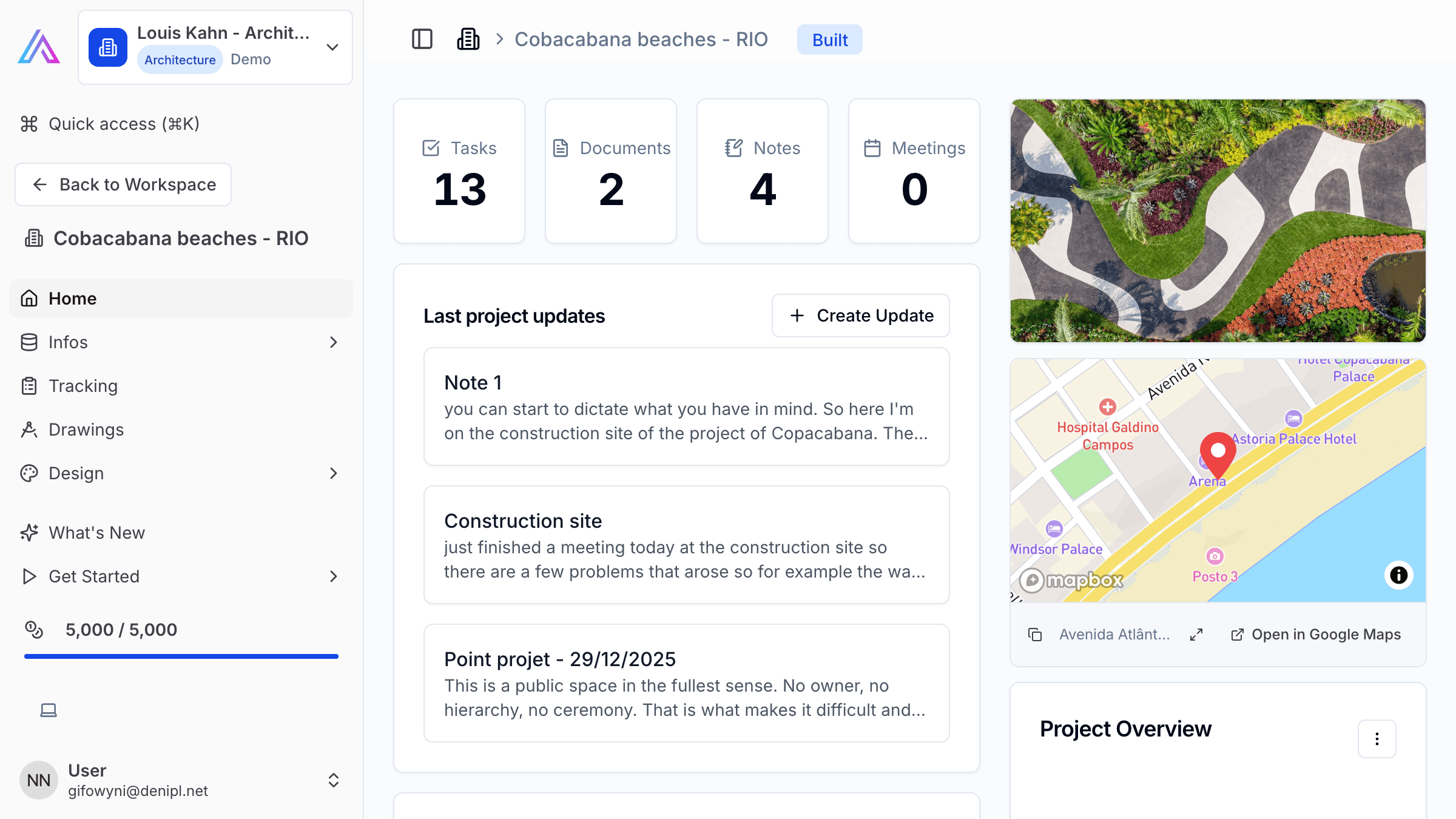
SuperArchi Projects is the central hub for managing your architecture engagements. Each project brings together site details, the architectural programme, work packages, and team members into a single workspace, giving everyone a clear view of scope and progress.
Key Capabilities
- Create and configure projects with address, surface area, and typology (residential, office, mixed-use, etc.)
- Define the architectural programme with spaces, target areas, and functional requirements
- Organise deliverables into packages (lots) for tendering and phase tracking
- Assign team members from your directory with specific roles and responsibilities
- Track project phases and milestones on a visual timeline
- Attach a site plan and geo-locate the project on an interactive map
Site
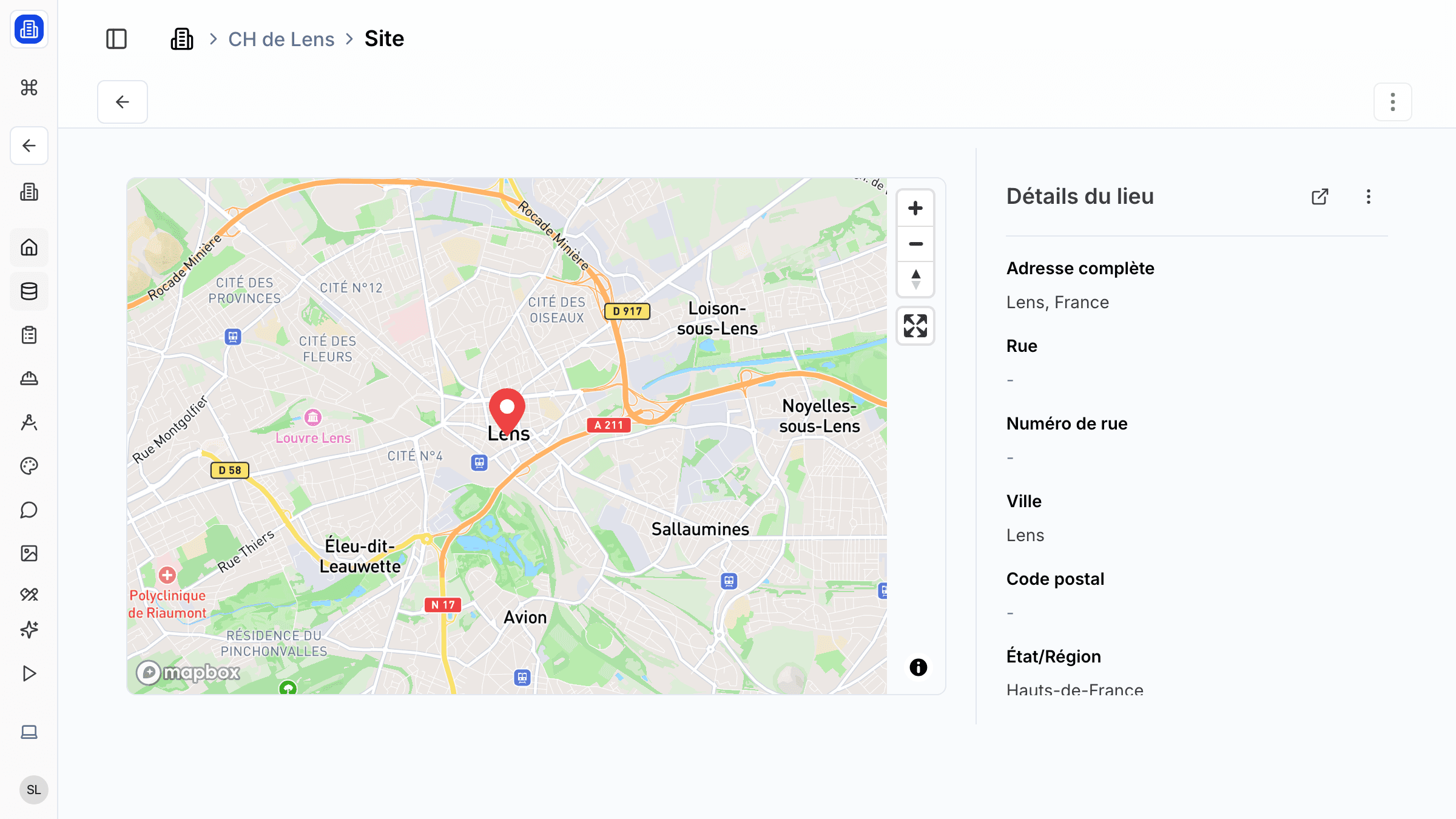
Record the project location, address, cadastral references, and site constraints. Add orientation data, topography notes, and upload a site plan so the entire team works from the same geographic context.
Spaces / Programme
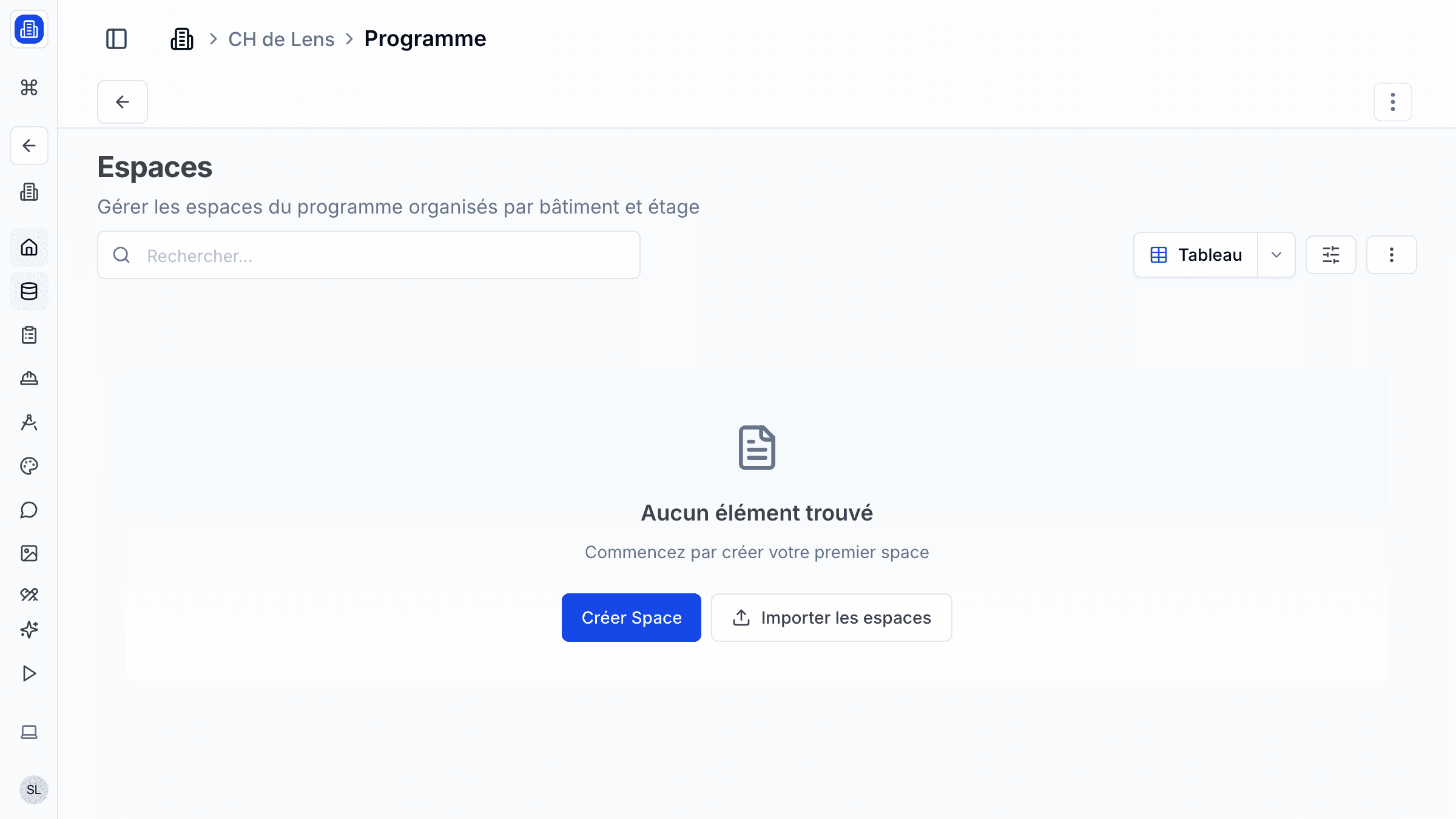
Define the rooms, areas, and functional spaces that make up the architectural programme. Set target surface areas, specify requirements for each space (e.g., natural light, accessibility), and track how the design evolves against the brief.
Packages
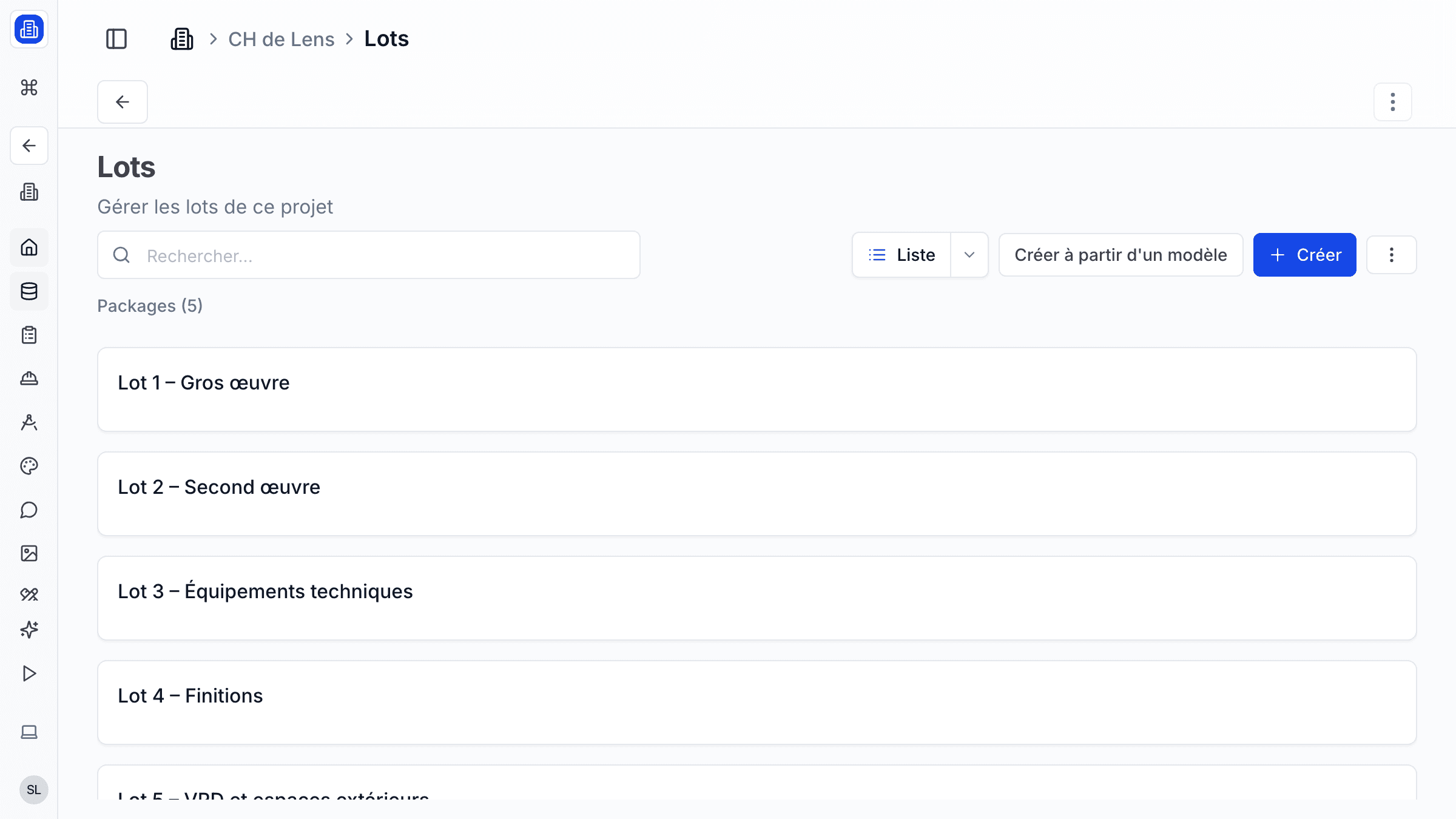
Group work items into packages (lots) that correspond to your project phases or tender lots. Each package can have its own deadline, assigned team, and linked estimate, making it easy to manage deliverables like esquisse, APS, APD, PRO, or DCE.
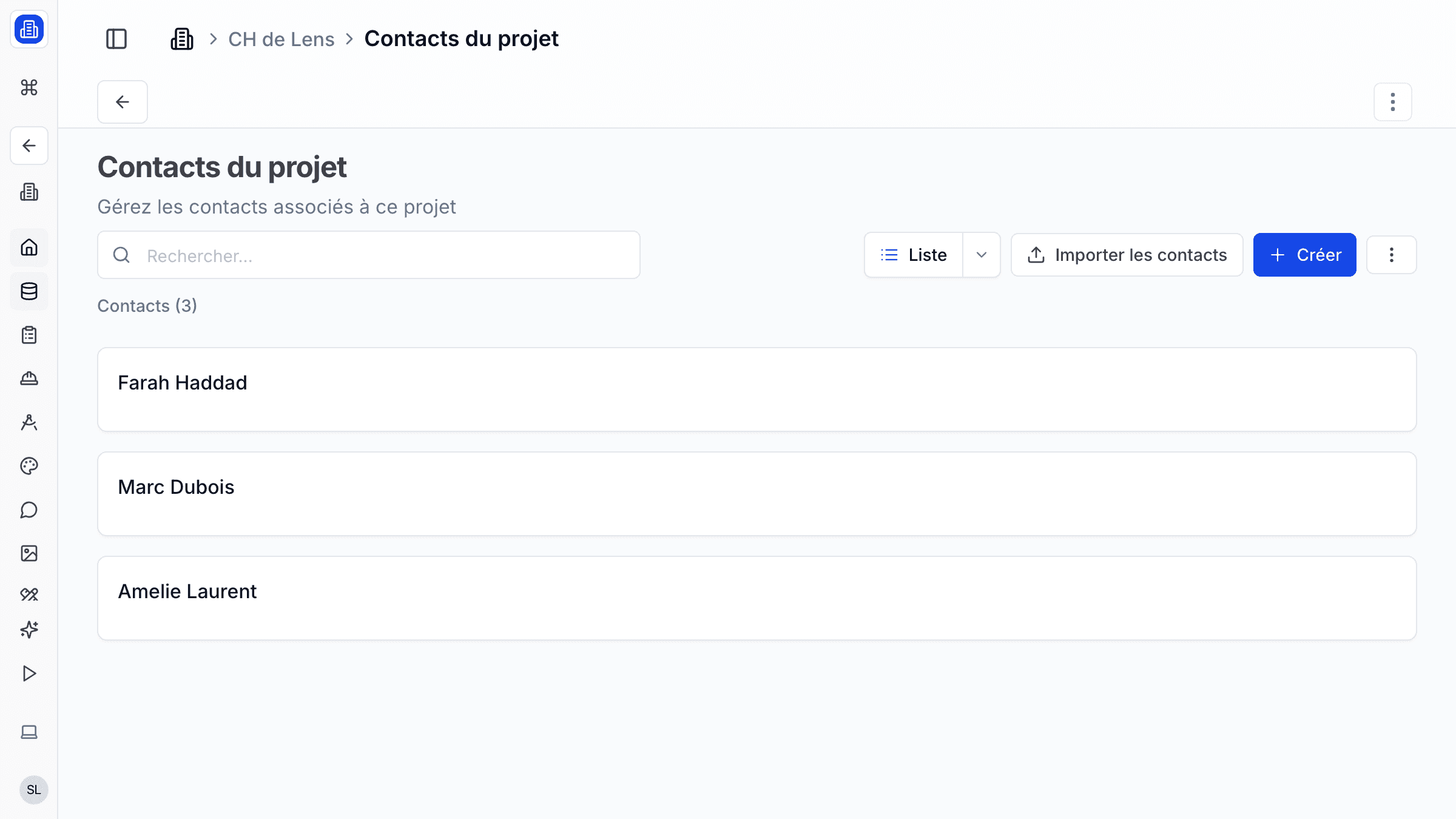
Project Team
Assign contacts from your directory as project team members and define their roles — project lead, BIM manager, landscape architect, structural engineer, and more. Everyone on the team gets access to the project workspace and sees only what is relevant to their role.
How It Works
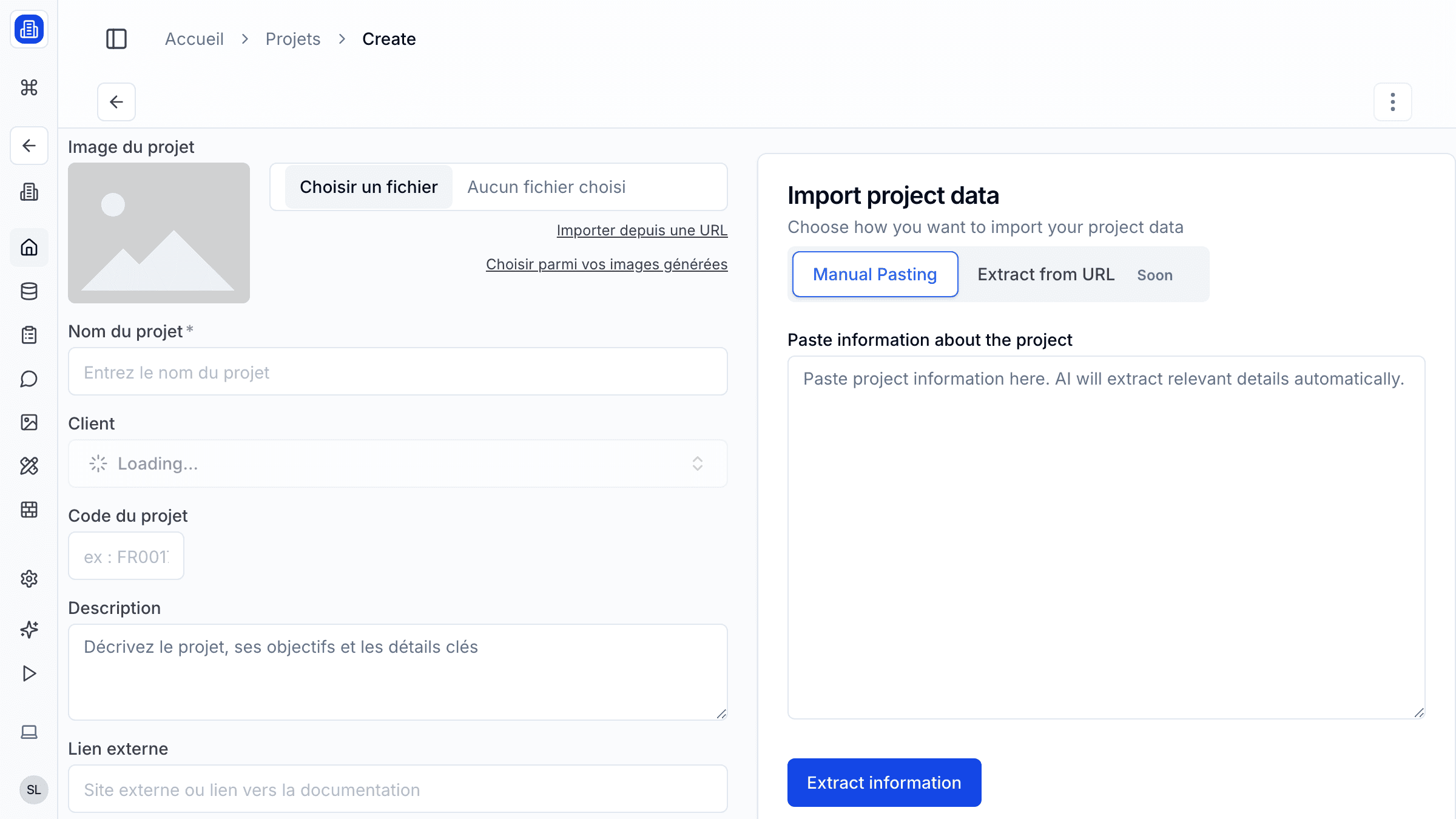
- Navigate to Projects and click New Project. Fill in the project name, client, address, and typology.
- Open the Site tab to record location details, constraints, and upload a site plan.
- Switch to the Programme tab to add spaces (e.g., "Open-plan office — 350 m2") and set target metrics.
- Create packages in the Packages tab and assign due dates for each deliverable phase.
- Invite team members from the Team tab, selecting contacts from your directory and assigning their roles.
Tips & Best Practices
- Start by importing your programme from an Excel file to save setup time.
- Use project templates for recurring typologies — duplicate a past project and update the details.
- Keep the site plan up to date so that everyone references the same plot boundaries.
- Archive completed projects instead of deleting them to preserve your firm's project history.
Related Features
- Planning — Define milestones and schedule phases for each project
- Tasks — Break project work into trackable action items
- Documents & Files — Attach plans, reports, and contracts to each project
FAQ
Can I duplicate an existing project to use as a template? Yes. Open the project menu and select Duplicate. All programme data, packages, and settings are copied into a new draft project that you can rename and adjust.
How many team members can I add to a project? There is no hard limit. You can invite as many collaborators as your subscription plan allows, each with a specific role and permission level.
Is it possible to merge two projects? Not directly. However, you can export data from one project and import it into another, or link them as related projects for easy navigation.
Last updated: 10 April 2026