Settings
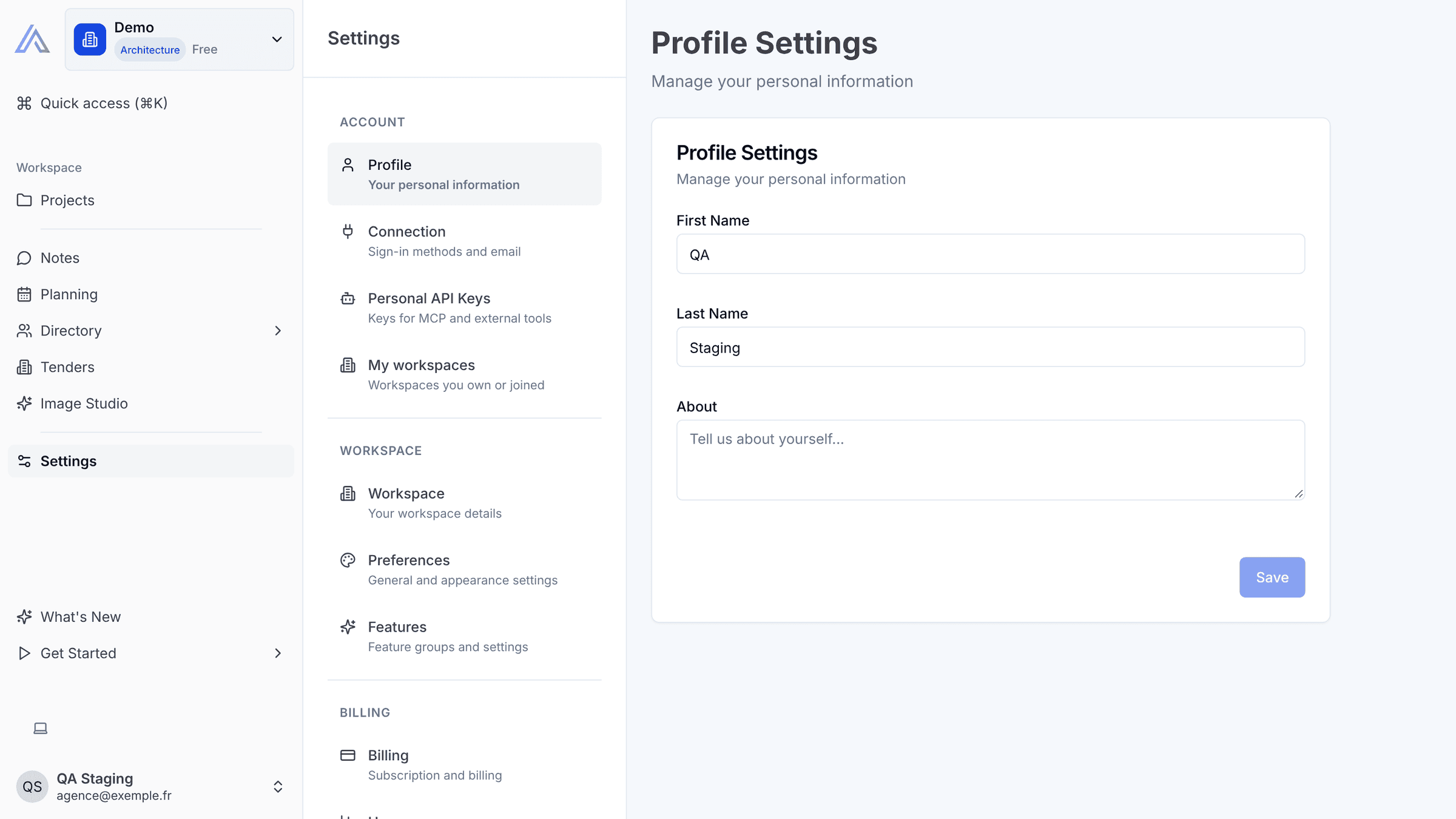
Settings gathers everything about your account and your workspace in one place: your name, how you sign in, the personal keys that connect AI tools, the workspaces you belong to, your workspace and company details, the interface language, the modules enabled on the workspace, and your subscription and usage.
Key Capabilities
- Profile: your first name, last name and a short About text
- Connection: see the e-mail and sign-in methods of your account (Google, Email + password) and set or change your password
- Personal API Keys: create and revoke the keys that connect Claude and other AI tools to your account
- My workspaces: the workspaces you own and those shared with you, with pending invitations to accept or discard
- Workspace: the workspace name, description and Main activity, and your Company details (logo, name, address)
- Preferences: the interface language
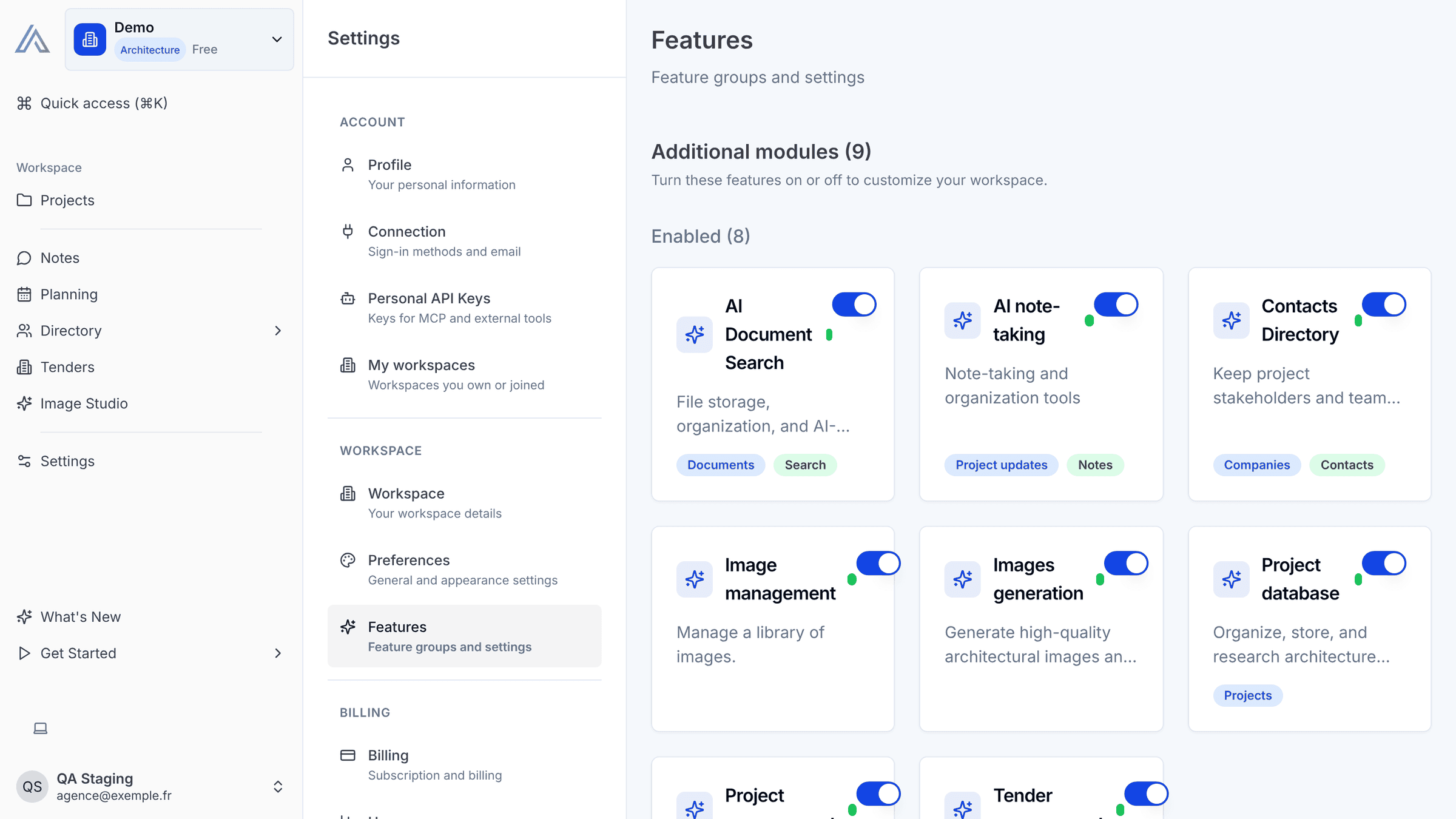
- Features: turn the additional modules of your workspace on or off, and unlock beta modules
- Billing and Usage: your subscription, invoices, and how much of your plan you are using
Account
Profile holds your First Name, Last Name and About text. Click Save to keep your changes.
Connection shows the e-mail of your account (it cannot be changed here) and the sign-in methods linked to it. To set a password (if you only sign in with Google) or to change it, click Send confirmation email: nothing changes until you click the link in that e-mail.
Personal API Keys lists the keys that connect external tools, such as the Claude Connector (MCP), to your account. A personal key gives access to all the workspaces you belong to. Click Create API Key, give it a name, then copy it right away: it is shown only once. Apps connected through Claude appear with the Connected app badge. Revoke stops a key immediately.
My workspaces has two lists: My workspaces (the ones you own: Edit their name and description, or Copy workspace ID) and Shared with me (workspaces you were invited to: Accept or Discard a pending invitation, or Leave a workspace you joined).
Workspace
Workspace holds the Workspace name, the About text and the Main activity of the current workspace. The Company card stores your firm's Logo, Company name and Place / address. Each card has its own Save button.
Preferences sets the interface Language. The page reloads in the new language.
Features lists the modules of your workspace. Additional modules can be turned on or off with their switch; they are grouped into Enabled and Available. Turn on Enable beta features to see the Beta modules and switch them on as well.
Billing
Billing shows your Current Plan, its status and dates. With a card subscription, Manage Billing opens the billing portal and the Invoices list lets you Download past invoices. Cancel Subscription asks for a reason, then keeps your access until the end of the paid period. Without a subscription, Choose a Plan takes you to the plans, and Book a 1:1 demo lets you book a call with the team.
Usage compares what the workspace uses with the limits of your plan: workspace members, generated images, AI credits per month and storage.
How It Works
- Click Settings in the left sidebar. The Profile page opens.
- Pick a page in the settings menu: Account pages apply to you in every workspace, Workspace pages apply to the workspace you are in.
- Edit the fields, then click Save on the card you changed. The button stays disabled until something has changed.
- To work on another workspace's settings, switch workspace with the selector at the top of the sidebar first.
Tips & Best Practices
- Fill in the Company card (logo, name, address) once when you set up your workspace.
- Give each API key a clear name ("Claude desktop", "Office laptop") so you know which one to revoke later.
- Revoke the keys you no longer use: a personal key opens all your workspaces.
- Turn off the Additional modules you don't use to keep the sidebar short. You can turn them back on at any time.
Related Features
- Claude Connector (MCP) — Uses the keys from Personal API Keys
- AI Assistant (Archie) — Its questions use the AI credits shown in Usage
- Projects — Everything you set up here applies to your projects
FAQ
Why can't I open Settings? Settings are open to members who can edit the workspace. A member invited as a viewer is sent back to the app.
Can I change the e-mail of my account? Not from Settings: the Connection page shows it, but it cannot be changed there.
I created a key but lost it. Can I see it again? No. A key is shown only once, when it is created. Revoke it and create a new one.
What happens to my data if I leave a workspace? The data stays in the workspace; you only lose access to it. The owner can invite you again later.
Last updated: 17 November 2026