AI Assistant (Archie)
Archie is the SuperArchi assistant. Open it from the blue bubble at the bottom right of the app and ask questions in plain words about your projects: tasks, milestones, contacts, notes, meetings, site schedule and documents. Archie reads your workspace data to answer, and it can also prepare changes for you (a task, a milestone, a note, a meeting, a contact, a shift in the site schedule) that you confirm with one click.
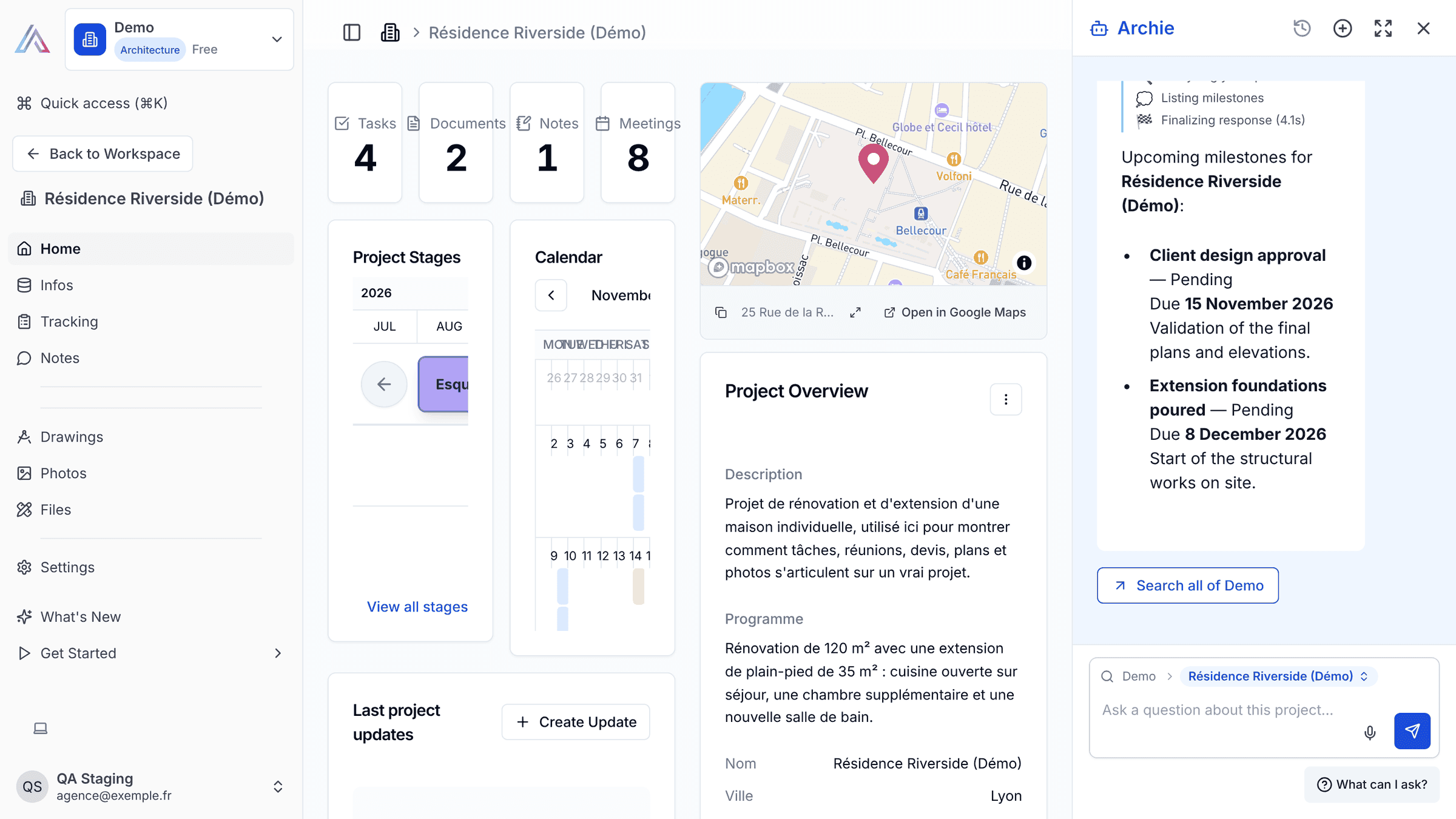
Key Capabilities
- Ask questions about the page you are on: a project, a tender, a document, or the whole workspace
- Choose where Archie searches with the scope bar above the question box: This document, Whole project, Whole tender or Whole workspace
- Get answers built from your projects, tasks, milestones, stages, contacts, notes, meetings, site schedule and documents, with links to the items it found
- Have Archie prepare a new task, milestone, note, meeting or project contact, or a change to an existing one: nothing is saved before you click Confirm
- Have Archie propose changes to a site schedule (move a phase or a task, change dates, add a task or a milestone): nothing changes before you click Apply
- Dictate your question with the microphone instead of typing it
- Find your past conversations in the history and start a new one at any time
Where Archie searches
Archie starts with the narrowest scope of the page you are on: on a project page it searches Whole project (documents, tasks, contacts, notes); on a tender, Whole tender; on a document, This document; elsewhere, Whole workspace. The scope bar above the question box shows it. Click it to search wider, and use Back to to return to the page's scope. Under an answer, a button such as Search all of your workspace asks the same question again on a wider scope. You can also simply write "look in all my projects".
The web is only searched when the answer isn't in your data, and Archie always says so.
Changes you confirm
When you ask Archie to create or change something ("add a task to send the revised plans to the engineer by Friday"), it shows a card with the proposed values. Click Confirm to save it with your own account and rights, or Cancel to dismiss it. After saving, Undo reverts the change. Archie never deletes anything.
For a site schedule, Archie shows the proposed changes, including tasks pushed by their dependencies. Click Apply to update the schedule, Undo to revert it, or Open the schedule to check it.
How It Works
- Click the blue bubble at the bottom right of the screen. The Archie panel opens on the right of the page.
- Check the scope shown above the question box, and change it if needed.
- Type your question (or dictate it with the microphone) and press Enter. Not sure what to ask? Click What can I ask? for example questions.
- Read the answer. Click the links to open the items Archie mentions. From the menu under an answer, Copy to clipboard, or on a project, Save response as a note.
- If Archie proposes a change, review the card and click Confirm or Apply.
- Use the buttons at the top of the panel to see the chat history, start a new chat, enlarge the panel to full width, or close it.
Tips & Best Practices
- Open Archie from the page you are asking about: it then knows which project, tender or document you mean.
- Ask precise questions ("which tasks are due this week on this project?") rather than broad ones.
- Read the proposed card before clicking Confirm: check the project, dates and assignee.
- For questions about the documents of a list (documents, meetings, notes), the AI search view of that list is also available in its view selector.
Related Features
- Documents & Files — The documents Archie searches
- Tasks — Tasks Archie lists, creates or updates
- Construction — The site schedule Archie can propose to change
- Tenders — Archie also scores tender notices against your firm profile
- Settings — Check the AI credits used by the workspace in Usage
FAQ
Can Archie change my data without asking? No. Archie only proposes changes. Nothing is saved until you click Confirm (or Apply for a schedule), and you can Undo right after. It cannot delete anything.
Why don't I see the chat bubble? The bubble is hidden on a few pages: creation and edit forms (new project, project import, project or contact edit), the contacts list, the image library and project photo galleries, and the pages that open a single document or file. It is also not shown on phone-sized screens.
Does asking a question cost credits? Yes. Each question uses AI credits of the workspace. If there are not enough credits left, Archie tells you how many are available and how many are needed. Settings → Usage shows the credits used this month.
Can other members read my conversations? No. The chat history only lists your own conversations. Archie only reads the data your account can access.
Last updated: 17 November 2026